
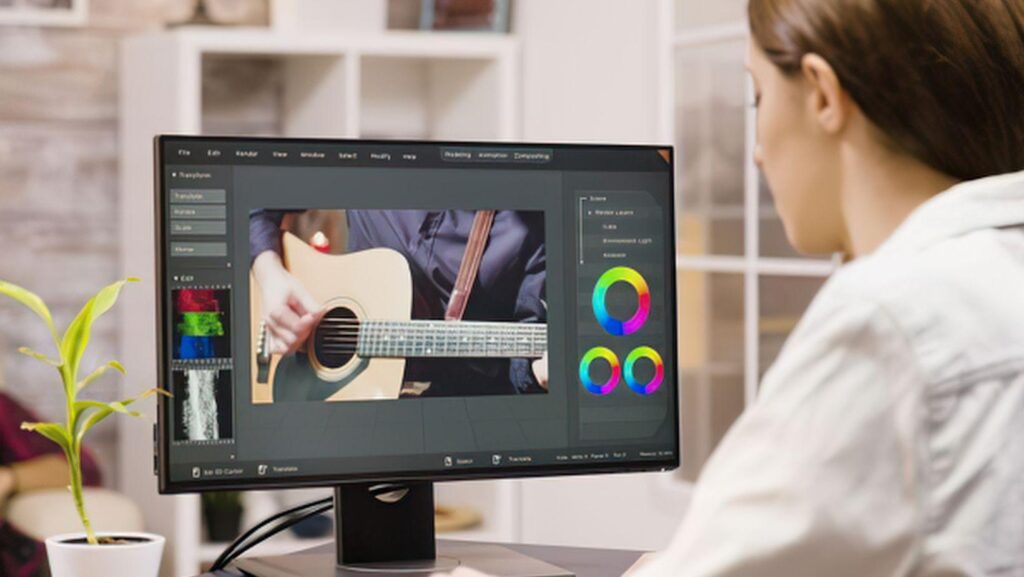
Editing photos used to mean hours of clicking, layers, and guesswork. Now a simple sentence can fix a messy background or change the light in a shot. The Nano Banana 2.5 photo editing tool belongs to a new group of AI photo editor options that work from plain text prompts. You type what you want, and the image changes in seconds. This guide shows you how to get clean, sharp results without design skills. You will learn the basic steps, smart prompt habits, and ways to handle background removal, character consistency, and image generation. It also covers limits, safety, and cost, so you know what to expect before you start.
Quick Answer: How Do You Get Good Results?
Ask for one clear change at a time. Name the subject, say what should change, and add a note about light or style. Check the result, then ask for the next small change. Short steps give you more control than one long, crowded request.
Key Takeaways
- Nano Banana is the nickname for Google’s Gemini 2.5 Flash Image model, which is why many guides say Nano Banana 2.5.
- The model edits with everyday language, so you do not need layers or masks.
- Small, single edits work better than one huge prompt.
- Google adds an invisible SynthID watermark to images made or edited with the model.
- Availability inside apps changes often, so check your app before you plan a project.
What Is Nano Banana 2.5?
Nano Banana started as the playful codename for Gemini 2.5 Flash Image, an image creation and editing model that Google introduced on August 26, 2025. People liked the name, and it stuck. Some guides add 2.5 to point to the Gemini 2.5 version behind it.
Google says the model can blend several images into one, keep a character looking the same across scenes, make targeted changes with natural language, and use Gemini’s world knowledge to understand what it edits. In other words, you can talk to your photo editor like you would talk to a helper.
One note on naming. The name Nano Banana points to Google’s model family, not a single app. Apps such as CapCut add these models to their own image tools. At the time of writing, CapCut’s image generator lists Nano Banana Pro, a newer Google model, among its options. One review of CapCut’s Nano Banana 2.5 page noted that 2.5 was marked as coming soon while Pro was live. Check the tool page on CapCut to see what your account offers today.
What Can It Do? A Simple Look
|
Feature |
What it means in plain words |
Good for |
|
Conversational editing |
You ask for a change in a sentence and the image updates |
Fixing light, colors, small objects |
|
Targeted edits |
Only the part you name changes |
Removing a stranger, changing a shirt color |
|
Multi-image blending |
Two or more photos merge into one |
Product mockups, new scenes |
|
Character consistency |
A person, pet, or object stays recognizable across images |
Story posts, brand mascots |
|
World knowledge |
The model understands real things, like a sunset or a kitchen |
More natural results |
How to Master It: 7 Simple Steps
1. Start With a Good Photo
The model can fix a lot, but a sharp, well lit photo gives it more to work with. Use the highest quality file you have. Blurry or very dark images lead to soft results.
2. Decide the One Change You Want
Before you type, pick a single goal. It might be a cleaner background, warmer light, or a new outfit color. One goal keeps the model focused.
3. Write a Clear Prompt
Use a simple pattern: subject, change, and detail. Here is the idea in action.
|
Weak prompt |
Better prompt |
|
Make it nicer |
Brighten the photo, keep the skin tones natural, and soften the shadows on the left |
|
Change the background |
Replace the busy street behind the woman with a plain light gray studio wall |
|
Add a hat |
Add a brown wool beanie to the man, keep his face and hair unchanged |
Notice that the better prompts say what to keep as well as what to change. That small habit protects the parts you like.
4. Edit in Small Rounds
Do not ask for five changes at once. Fix the background first. Then adjust the light. Then change the color of one item. Because the model works in conversation, each round builds on the last one.
5. Use Reference Photos When You Can
If you want a certain look, add a second image as a guide. For example, upload a photo of a product and a photo of a table, then ask to place the product on the table. Blending works best when both images are clear.
6. Check the Details
Zoom in on hands, eyes, edges, and any text. AI edits can leave small flaws, such as a blurred finger or a bent letter. If something looks off, ask for a fix in a short follow up.
7. Export in the Right Size
Choose a size that matches where the image will go. A square shape suits many social feeds, a tall shape suits stories, and a wide format suits banners and video covers. Keep a copy of your original file in case you want to start again.
Ways to Use It Day to Day
- Social media posts. Clean up backgrounds and match colors across a set of photos.
- Product photos. Place items in new scenes for early design reviews.
- Old photo repair. Add color to black and white family pictures or reduce scratches.
- Thumbnails and covers. Try a few looks quickly before you settle on one.
- Simple mockups. Show a logo on a mug, a shirt, or a poster.
Case Studies: How Others Put the Model to Work
Real projects show what this technology can do. Google’s developer team shared two examples after launch.
Cartwheel makes a 3D posing tool for characters. The team said they spent months building a feature called Pose Mode and found other models did not give both the control and the consistency they needed. They joined their 3D tool with Gemini 2.5 Flash Image to create a character system with steady looks across images.
Volley, the studio behind a game called Wit’s End, uses the model to make and edit visuals during play. Examples include character portraits, scene stills, and quick edits requested by chat or voice.
The lesson for everyday users is that the strongest results come from pairing the model with a clear goal, whether that is a posed character or a simple product photo.
Limits and Honest Tips
No tool is perfect. Google has said it is still working on long text inside images, more reliable character consistency, and finer factual details. That means you should expect to review and sometimes redo an edit.
Resolution can also vary by model. One CapCut guide says the original Nano Banana is limited to 1024 by 1024 pixels with basic upscaling, while the newer Pro model supports higher resolution. If you need large prints, check the size before you commit.
On cost, Google lists Gemini 2.5 Flash Image at about $0.039 per image through its developer service. Consumer apps use their own plans. CapCut, for example, runs a membership model, and some features may need a paid plan or vary by region.
Use It Safely and Fairly
AI editing is powerful, so use it with care.
- Get permission before you edit photos of other people.
- Do not pass off an AI image as a real photo when that could mislead someone.
- Skip uploading private or sensitive images that you would not want stored anywhere.
- Read the current terms of use before you publish client or brand work.
Google states that every image created or edited with Gemini 2.5 Flash Image carries an invisible SynthID digital watermark, so it can be identified as AI made or edited. This is a helpful step toward honesty online.
Common Mistakes to Avoid
- Writing a very long prompt. Too many demands confuse the result.
- Forgetting to say what to keep. The model may change parts you wanted to leave alone.
- Skipping the zoom check. Small flaws show up on big screens.
- Ignoring the platform rules. Terms and plans differ from app to app.
- Editing the only copy. Always keep your original file.
Frequently Asked Questions
What is the Nano Banana 2.5 photo editing tool?
It is a way to edit and create images with Google’s Nano Banana model, also called Gemini 2.5 Flash Image. You type what you want in plain language, and the model changes the image.
Is Nano Banana free to use?
It depends on where you use it. Some apps offer free daily use or trial access, and others require a paid plan. Google’s developer price is about $0.039 per image. Check the plan in your app.
Do I need design skills?
No. Clear writing is the main skill. Be specific about the change, and mention what should stay the same.
Can it keep the same face across several images?
It is built to keep a character or object recognizable across edits, but Google notes that reliable consistency is still improving. Use reference photos and short, clear prompts, and always review the results.
Are AI edited photos marked in some way?
Google says images made or edited with Gemini 2.5 Flash Image include an invisible SynthID watermark, which helps identify them as AI generated or edited.
Can I use the results for business?
Often yes, but rules vary by platform and plan. Read the terms of the app you use before you publish paid or client work.
Final Thoughts
Learning an AI photo editor comes down to a few habits. Start with a good photo, ask for one change at a time, say what to keep, and check the details before you export. With practice, you will spend less time clicking and more time on the idea behind your image. Try the steps above on a single photo today, and note which prompts work best for you. Availability differs by app, so look at the official page for the Nano Banana 2.5 photo editing tool to see what it offers now.